

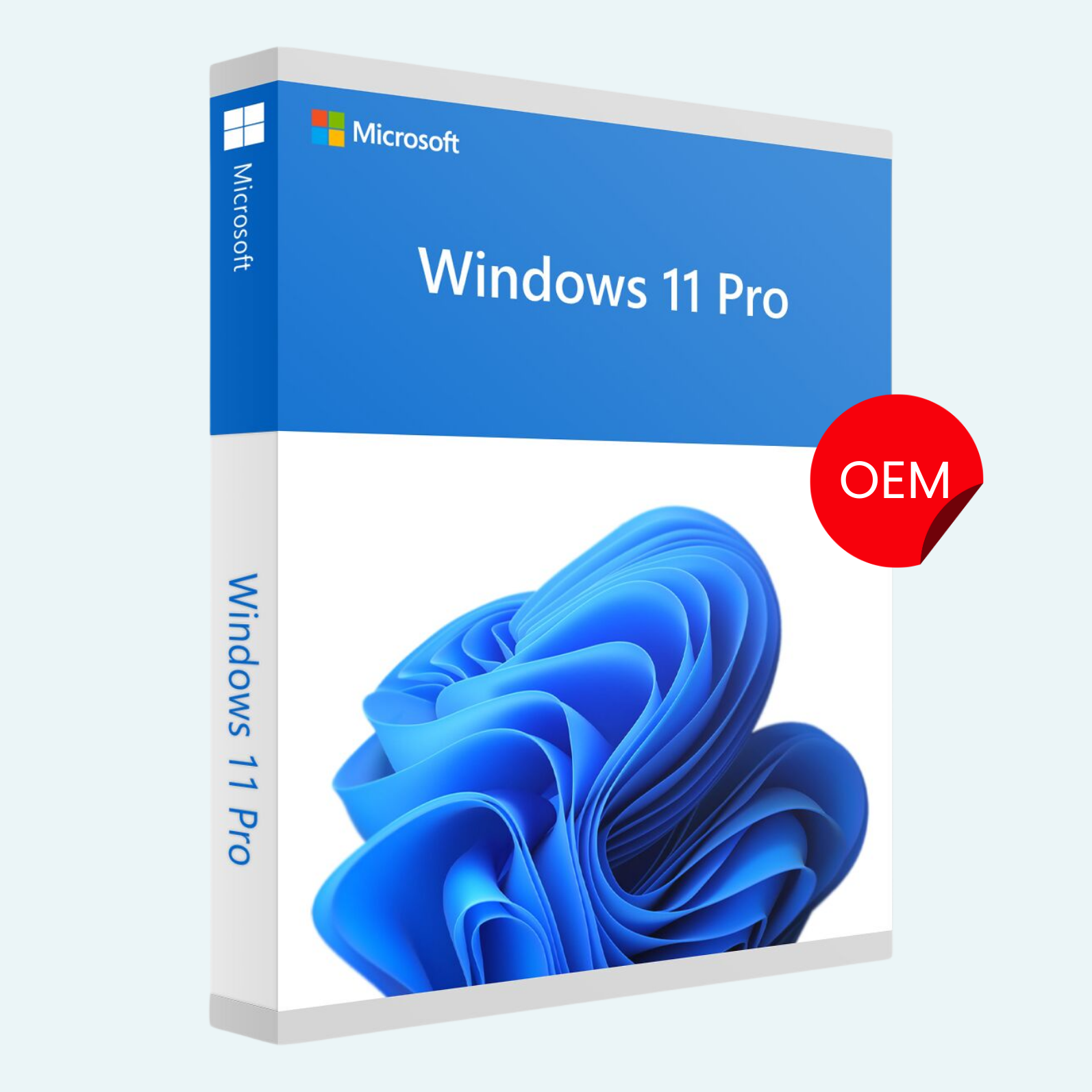
Unlock the full potential of your PC with this genuine OEM license key for Windows 11 Pro. Designed for professionals, creators, and power users, Windows 11 Pro delivers a sleek, modern interface with enhanced security, seamless multitasking, and built-in tools for remote work and collaboration. This OEM key is perfect for new installations or upgrades on a single device, providing lifetime access to updates, support, and the latest features from Microsoft. Get started instantly and transform your computing experience today!
Key Features
- Redesigned Interface: Centered Start menu, snap layouts, and virtual desktops for effortless organization and multitasking.
- Advanced Security: Built-in Windows Hello biometric login, BitLocker encryption, and Microsoft Defender for comprehensive protection against threats.
- Productivity Tools: Microsoft Teams integration, Widgets for real-time updates, and DirectStorage for faster game loading and file access.
- Remote Capabilities: Enhanced Remote Desktop for secure access from anywhere, plus Hyper-V for virtualization.
- AI-Powered Insights: Copilot (requires compatible hardware) for smart assistance in apps and workflows.
- Gaming Enhancements: Auto HDR, DirectX 12 Ultimate, and Xbox app integration for immersive play.
System Requirements
- Processor: 1 GHz or faster with 2 or more cores on a compatible 64-bit processor or System on a Chip (SoC).
- RAM: 4 GB or more.
- Storage: 64 GB or larger storage device.
- Graphics Card: Compatible with DirectX 12 or later with WDDM 2.0 driver.
- TPM: Version 2.0 (enabled in BIOS/UEFI).
- Display: High definition (720p) display greater than 9″ diagonally, 8 bits per color channel.
- Internet Connection: Required for setup, updates, and some features (including Microsoft Account for full functionality).
- Other: UEFI firmware with Secure Boot capability; compatible PC running Windows 10/11 or clean install media.
Download, Install, and Activate Your Product
Step 1: Download Windows 11
After purchase, you’ll receive your unique OEM license key via email. Visit the official Microsoft website (microsoft.com/software-download/windows11) to download the Windows 11 Installation Media Tool or ISO file for free. This tool creates a bootable USB drive or DVD for installation.

Step 2: Install Windows 11
- Insert your bootable USB/DVD and restart your PC.
- Enter BIOS/UEFI (usually by pressing F2, Del, or Esc during boot) to set the USB/DVD as the primary boot device.
- Follow the on-screen prompts to select your language, edition (Pro), and installation type (custom for clean install or upgrade).
- Enter your product key when prompted during setup, or skip and activate later.
Step 3: File > Account > Activate Product
- Once installed, open Settings (press Windows key + I).
- Navigate to System > Activation (or search for “Activation” in the Start menu).
- Under “Activation,” click Change product key and enter your OEM license key.
- Sign in with your Microsoft Account if prompted (via File > Account in apps like File Explorer or Microsoft Store for linked benefits).
- Click Activate—your copy will be verified and activated instantly. If issues arise, use the built-in Troubleshooter or contact Microsoft Support with your key.
Note: This OEM key is non-transferable and tied to one device. For activation support, ensure your hardware meets requirements. Delivery is digital and immediate upon purchase. Questions? Contact our support team anytime.
Be the first to review “Windows 11 Pro Product OEM License Key”
Related products
Microsoft Windows
Microsoft Windows
Microsoft Windows 10 Professional 32/64 Bit License Key – 1PC Lifetime
Microsoft Windows
Microsoft Windows 11 Professional 32/64 Bit License Key – 1PC Lifetime
Microsoft Windows
Microsoft Windows
Microsoft Windows
Microsoft Windows
Reviews
There are no reviews yet.