

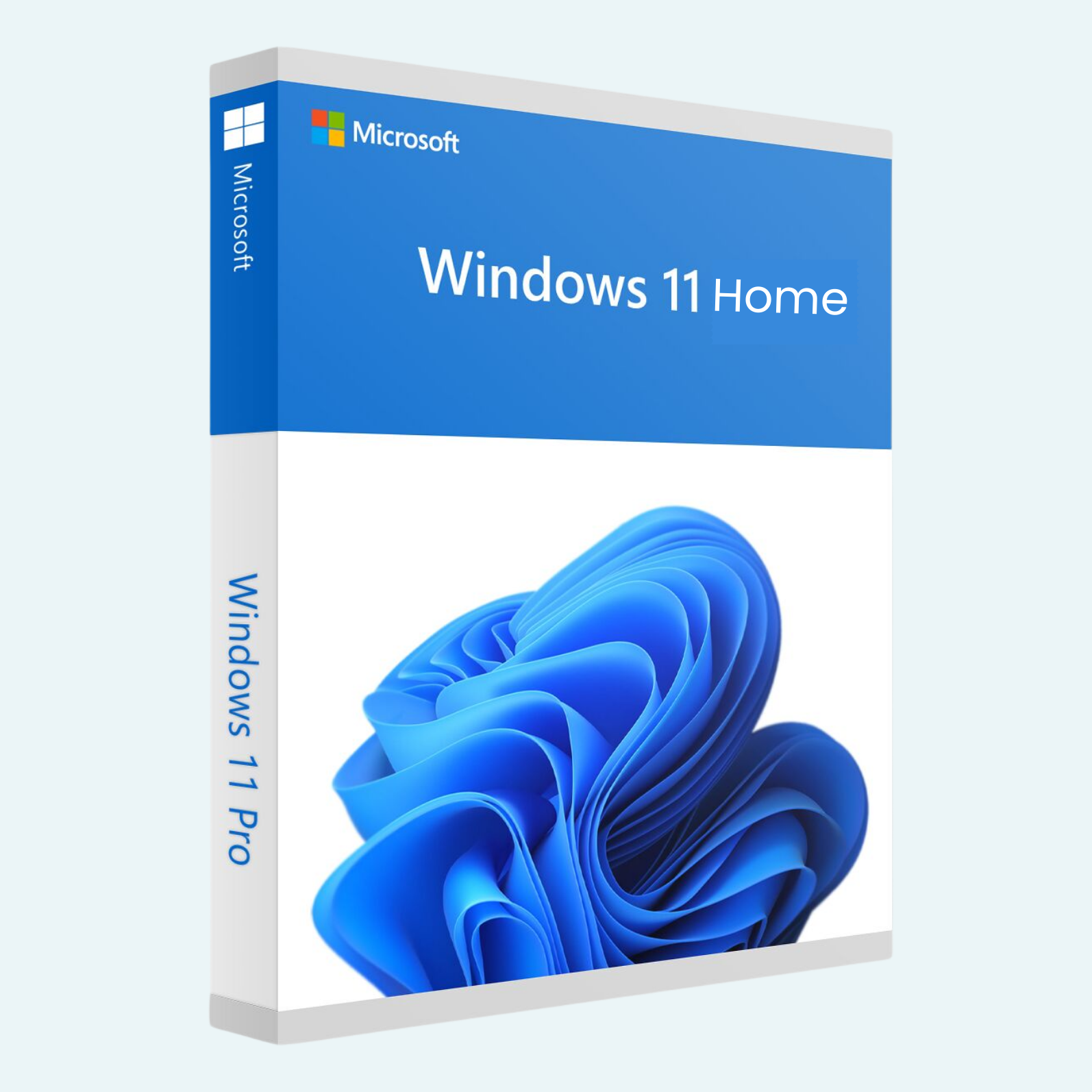
Elevate your computing experience with Microsoft Windows 11 Home, the latest operating system from Microsoft designed for modern users who demand seamless productivity, stunning visuals, and robust security. Whether you’re a student, creator, or everyday enthusiast, Windows 11 Home transforms your PC into a versatile hub for work, play, and creativity. With its refreshed interface, AI-powered tools, and enhanced gaming capabilities, it’s the perfect upgrade for eligible devices—delivering a more intuitive and efficient way to get things done.
Download, Install, and File > Account > Activate Product
Getting started with Windows 11 Home is straightforward. Follow these step-by-step instructions to download, install, and activate your product. Note: Ensure your PC meets the minimum requirements before proceeding. Back up your files to an external drive or cloud storage to avoid data loss.
- Download the Installation Media:
- Visit the official Microsoft website: Download Windows 11.
- Select “Create installation media (USB flash drive, DVD, or ISO file) for another PC” and click Download Now to get the Media Creation Tool.

- Run the tool, accept the license terms, and choose your language, edition (Windows 11 Home), and architecture (64-bit).
- Opt for a USB drive (8GB+ required) for bootable media or an ISO file for virtual machines/advanced setups. The tool will download and prepare the files automatically.
- Install Windows 11 Home:
- Upgrade from Windows 10: If your current PC runs Windows 10 (version 2004 or later), use the Windows 11 Installation Assistant from the same download page. Run it, accept terms, and follow the prompts—it will download and install Windows 11 while preserving your files and apps. Your PC may restart several times; do not interrupt the process.
- Clean Install (New PC or Fresh Start): Insert the USB drive, restart your PC, and enter BIOS/UEFI (usually by pressing F2, Del, or Esc during boot) to set the USB as the first boot device. Save and exit to boot from the media. Follow on-screen prompts: Select language/region, enter your product key (or skip for later activation), choose Custom: Install Windows only (advanced), and select your drive. The installation will proceed automatically.
- File > Account > Activate Product:
- During initial setup (Out-of-Box Experience), connect to the internet and sign in with a Microsoft account—this is required for Windows 11 Home to complete setup and enable features like cloud sync.
- After installation, go to Start > Settings > System > Activation.
- Select Change product key and enter your 25-character Windows 11 Home product key (e.g., XXXXX-XXXXX-XXXXX-XXXXX-XXXXX).
- If linked to a digital license via your Microsoft account, activation happens automatically upon sign-in. Troubleshoot errors by running the Activation Troubleshooter in Settings or contacting Microsoft Support.
- For upgrades from Windows 10, your existing license transfers seamlessly if eligible.
Your product is now activated and ready for updates via Settings > Windows Update.
Key Features
Windows 11 Home packs innovative tools to boost your daily workflow and entertainment. Here’s what sets it apart:
- Redesigned User Interface: Centered Start menu, rounded corners, and Snap Layouts for effortless multitasking—organize windows with a snap for up to four apps on screen.
- AI-Powered Copilot: Your built-in assistant (accessible via taskbar or Copilot key on supported keyboards) handles tasks like summarizing documents, generating images in Paint, or automating routines with natural language.
- Enhanced Security: Trusted Platform Module (TPM) 2.0 integration, Windows Hello biometrics (face/fingerprint/PIN), and advanced antivirus defenses to protect against threats without slowing you down.
- Gaming Excellence: DirectX 12 Ultimate for lifelike graphics, Auto HDR for richer colors, and Xbox app integration for seamless Game Pass access and cloud gaming.
- Productivity Boosts: Integrated Microsoft Teams for quick chats, virtual desktops for work-from-home setups, and a revamped Microsoft Store for fast app downloads.
- Widgets and Personalization: Glanceable insights (weather, news, stocks) via customizable Widgets board, plus themes and focus modes to tailor your experience.
- Microsoft 365 Integration: Direct access to Word, Excel, and more (subscription required) for collaborative editing and real-time co-authoring.
These features evolve with free updates, ensuring your PC stays cutting-edge.
Requirements
To run Windows 11 Home smoothly, your PC must meet these minimum specifications. Use Microsoft’s PC Health Check app to verify compatibility.
| Category | Minimum Requirement |
| Processor | 1 GHz or faster with 2+ cores on a compatible 64-bit processor (e.g., Intel 8th Gen or newer, AMD Ryzen 2000 or newer). |
| RAM | 4 GB |
| Storage | 64 GB or larger |
| Graphics | DirectX 12 compatible with WDDM 2.0 driver |
| Display | High definition (720p) display, 9″ or greater monitor, 8 bits per color channel |
| TPM | Version 2.0 |
| Firmware | UEFI, Secure Boot capable |
| Internet | Required for setup, updates, and some features (plus Microsoft account for Home edition) |
| Other | Compatible USB drive (8GB+) for installation media; optional Bluetooth for peripherals |
Note: Some features (e.g., Copilot) may require additional hardware like a webcam or NPU. Performance scales with higher-end specs. If your PC doesn’t qualify, consider hardware upgrades or sticking with Windows 10 (supported until October 2025).
Unlock the future of computing—purchase Windows 11 Home today and experience innovation at your fingertips! For support, visit Microsoft Support
Be the first to review “Microsoft Windows 11 Home License Key – Lifetime for 1 PC”
Related products
Microsoft Windows
Microsoft Windows
Microsoft Windows
Microsoft Windows
Microsoft Windows
Microsoft Windows 10 Professional 32/64 Bit License Key – 1PC Lifetime
Microsoft Windows
Microsoft Windows
Reviews
There are no reviews yet.