

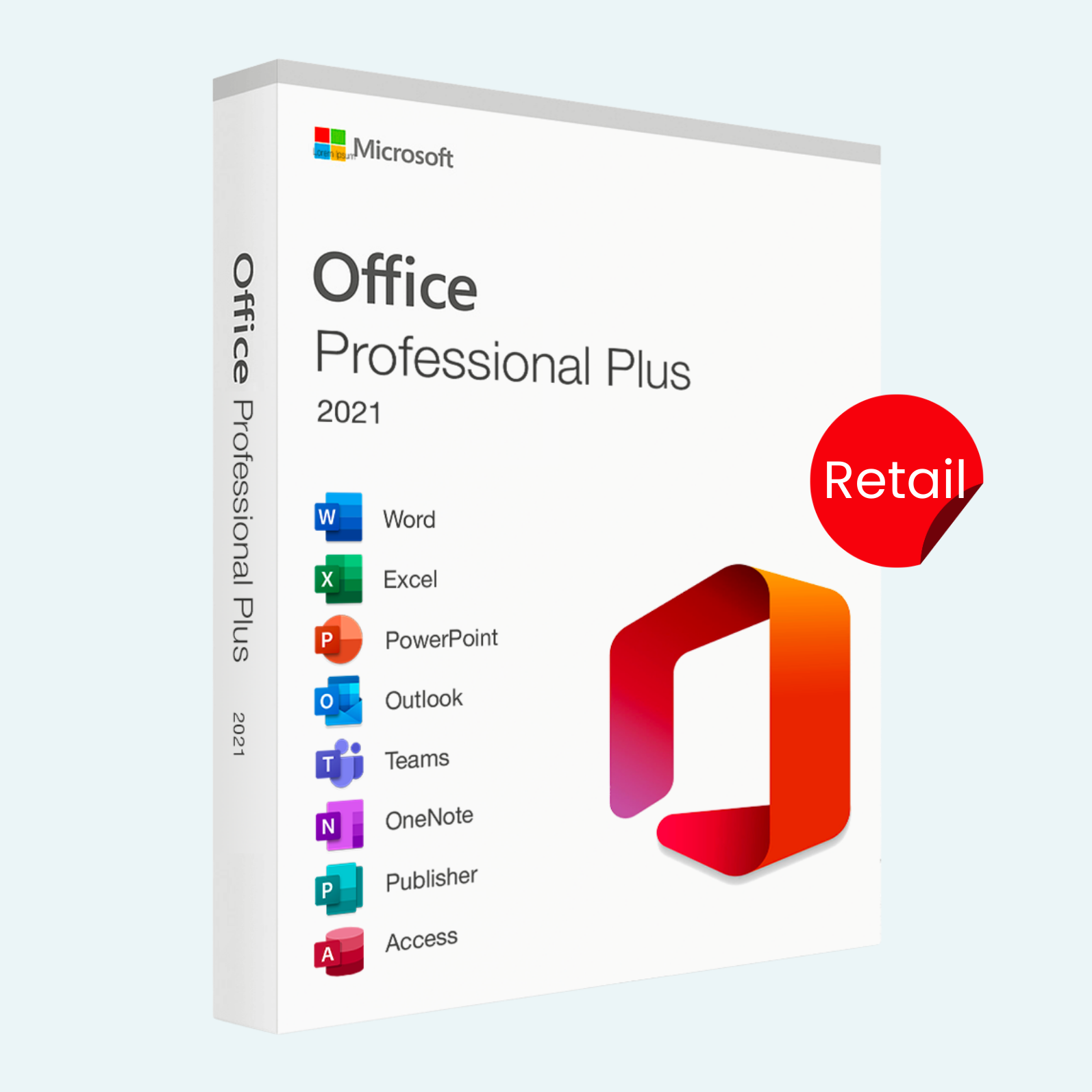
Elevate your productivity with Microsoft Office 2021 Professional Plus Retail for Windows, the ultimate suite for professionals, businesses, and creators who demand powerful, reliable tools. This one-time purchase perpetual license delivers the full retail edition of Microsoft’s flagship productivity software, including Word, Excel, PowerPoint, Outlook, Access, Publisher, OneNote, and Teams—optimized for Windows with enhanced performance, modern themes, and seamless integration for collaboration. Unlike subscriptions, enjoy lifetime access without recurring fees, automatic updates, and full compatibility with your existing files. Ideal for data analysis, document creation, email management, and more, it’s designed for Windows 10/11 users seeking offline-first reliability with optional cloud features.
Key Features
- Word: Advanced writing tools with improved inking, Open Document Format support, and real-time collaboration for polished documents.
- Excel: Dynamic arrays, XLOOKUP function, enhanced charts, and large dataset handling for powerful data analysis and visualization.
- PowerPoint: New Morph transitions, 3D animations, and Zoom features for engaging presentations that captivate audiences.
- Outlook: Focused Inbox, improved search, and calendar enhancements for streamlined email and scheduling.
- Access: Robust database management with better performance for building and querying complex data sets.
- Publisher: Professional desktop publishing with high-resolution photo integration and custom layouts.
- OneNote: Enhanced note-taking with dark mode, math equation support, and cross-device syncing.
- Teams: Integrated chat, meetings, and file sharing for secure team collaboration (requires Microsoft account).
- Additional perks: Dark mode across apps, hardware-accelerated graphics, accessibility improvements, and support for up to 6TB of data in Excel—perfect for high-demand workflows.
System Requirements
Before installation, ensure your PC meets these minimum specifications for optimal performance:
- Operating System: Windows 11 or Windows 10 (version 1809 or later; 32-bit and 64-bit supported).
- Processor: 1.6 GHz, 2-core processor (recommended: 2 GHz or faster for multi-core).
- Memory (RAM): 4 GB (recommended: 8 GB or more for 64-bit; 2 GB minimum for 32-bit).
- Hard Disk Space: 4 GB available (more for custom installations and updates).
- Display: 1280 x 768 screen resolution (1920 x 1080 or higher recommended).
- Graphics: DirectX 10-compatible graphics card with 0.5 GB VRAM (DirectX 12 recommended).
- Other: Internet connection for download, activation, and updates; Microsoft account; webcam and microphone for Teams features.
Download, Install, and File > Account > Activate Product
Getting started is straightforward—follow these steps to download, install, and activate your retail license. An internet connection is required initially for download and activation.
- Download the Installer
- Visit office.com/setup and sign in with your Microsoft account (create one for free if needed).

- Enter your 25-character product key (provided upon purchase, e.g., XXXXX-XXXXX-XXXXX-XXXXX-XXXXX) to redeem and access the download.
- Select Office 2021 Professional Plus (choose 32-bit or 64-bit based on your system—64-bit for large files).
- Click Install to download the setup file (OfficeSetup.exe, approximately 3-4 GB). Official download links are available directly from Microsoft for security.
- Install Office
- Locate the downloaded OfficeSetup.exe in your Downloads folder and double-click to run as administrator (right-click > Run as administrator).
- Follow the on-screen prompts: Accept the license terms, choose your installation preferences (e.g., language, location), and select Install Now.
- The process may download additional components—be patient (10-30 minutes depending on your connection). Avoid interrupting.
- Once complete, click Close. Shortcuts for all apps will appear in the Start menu.
- File > Account > Activate Product
- Launch any Office app (e.g., Word or Excel) from the Start menu.
- If prompted, select Accept to agree to the terms—this often triggers automatic activation.
- In the app, go to File > Account (or Help > Account in some views).
- Under Product Information, if it shows “Product Activated,” you’re set. If not, click Activate Product or Change Product Key.
- Enter your product key when prompted, or sign in with the associated Microsoft account. Follow the wizard (no phone call needed—it’s online).
- Activation confirms via Microsoft’s servers; you’ll see a green checkmark and “Product Activated” status. This ties the license to your device for lifetime use.
Troubleshooting Tips:
- If activation fails, ensure you’re online and try signing out/in via File > Account > Sign Out. Uninstall prior Office versions via Control Panel > Programs and Features to avoid conflicts.
- For reinstalls on the same PC, use the same key—no extra purchase needed. Retail licenses are device-specific but transferable with deactivation.
Unlock professional-grade tools today—your key to efficient, creative work! If issues arise, contact Microsoft Support or refer to support.microsoft.com/office.
Be the first to review “Microsoft Office 2021 Professional Plus Retail for Windows”
Related products
Microsoft Office For MAC
Office Home & Business 2024 One-Time Purchase for (PC or Mac)
Microsoft Office
Microsoft Office
Microsoft Office
Microsoft Office
Microsoft Office
Microsoft Office
Reviews
There are no reviews yet.